Selection Tools
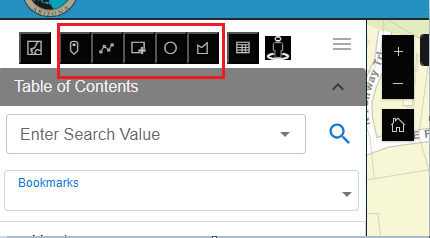
The Core UI widget includes powerful selection tools available through the Selection Mode Toolbar, found above the Table of Contents.
3/7/2026, 6:10:44 AM
The XBUI widget includes powerful selection tools available through the Selection Mode Toolbar, found above the Table of Contents.
Available selection modes:
- Point: Click a map point to select intersecting features.
- Line: Click and draw a line to select features it crosses.
- Rectangle: Click and drag a rectangle across features.
- Circle: Click and drag a circle around your selection.
- Polygon: Click to draw a custom shape, then double-click to close.
To use a selection tool:
- Click the appropriate icon from the toolbar.
- Follow the on-screen instructions to draw the selection.
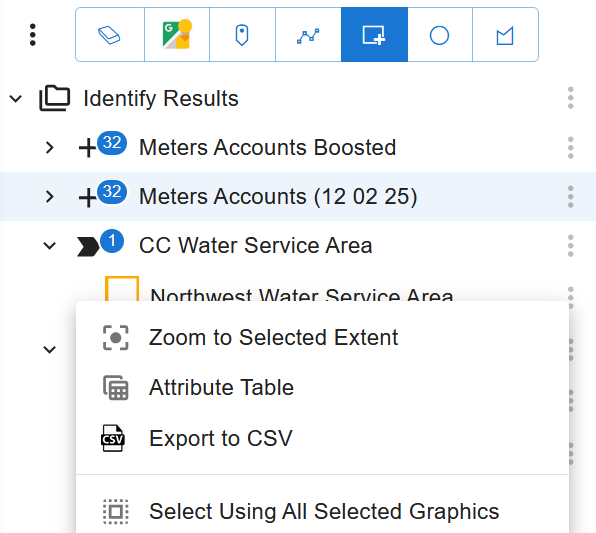
- The Identify panel below will populate with selected features.
Once selected, you can:
View attributes:
- Click on any layer name within the Identify panel to expand it.
- Click on a specific feature within the layer to view its attribute details.
- Attributes will appear in a structured format, showing field names and values.
Zoom or pan to individual features:
- Locate the feature in the Identify panel.
- Click the three-dot menu (•••) next to the feature.
- Select "Zoom to Location" to center and zoom into the feature.
- Alternatively, select "Pan to Location" to center the map on the feature without changing the zoom level.
Perform graphic or buffer selections:
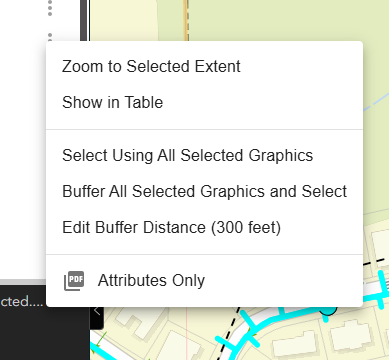
- From the Identify panel, click the three-dot menu next to a feature or layer.
- Choose "Select Using Graphic" to use that feature’s geometry (e.g., polygon) to select overlapping features.
- Choose "Buffer and Select Using Graphic" to apply a buffer (default 300 ft) around the feature and select features within that buffer.
- To change the buffer size, select "Edit Buffer" from the menu and input a new value (e.g., 500 ft). Save to apply.
More XUI Resources...

Adding Core UI to your Experience Builder Project
Learn how to integrate the Core UI widget into your ArcGIS Experience Builder project using our step-by-step guide for seamless map search and layer management.
Creating Custom Reports Using Core UI
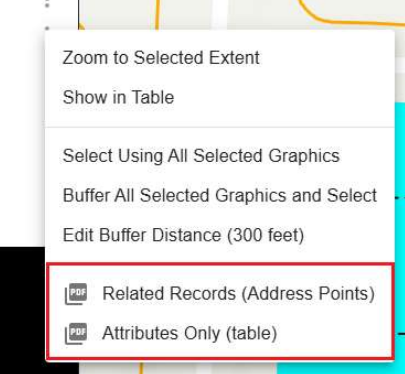
Leverage the power of Arcade expressions to bridge the gap between map layers and professional-grade outputs. With EXB Hub, you can instantly generate related-record Avery labels or tabular attribute PDFs directly from your sidebar selection.
Selection Tools
The Core UI widget includes powerful selection tools available through the Selection Mode Toolbar, found above the Table of Contents.
EXB Hub is a ArcGIS Experience Builder platform, which aims to enhance the user experience within Experience Builder. The Core UI widget consolidates several separate widgets into one, presenting users with a familiar and easy-to-navigate data tree interface commonly found in other ESRI products.
While Experience Builder serves as a valuable tool for creating interactive web apps, it is still in its early developmental phase, lacking some features that are prevalent in other ESRI products.
© 2025 Wide World Digital. All rights reserved

