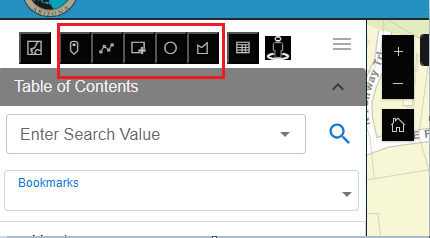
The xUI widget includes powerful selection tools available through the Selection Mode Toolbar, found above the Table of Contents.
5/9/2026, 7:22:17 PM
The xUI widget includes powerful selection tools available through the Selection Mode Toolbar, found above the Table of Contents.
Available selection modes:
- Point: Click a map point to select intersecting features.
- Line: Click and draw a line to select features it crosses.
- Rectangle: Click and drag a rectangle across features.
- Circle: Click and drag a circle around your selection.
- Polygon: Click to draw a custom shape, then double-click to close.
To use a selection tool:
- Click the appropriate icon from the toolbar.
- Follow the on-screen instructions to draw the selection.
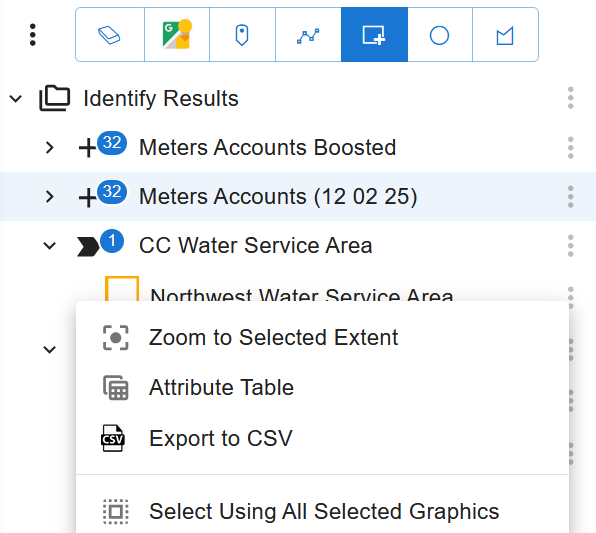
- The Identify panel below will populate with selected features.
Once selected, you can:
View attributes:
- Click on any layer name within the Identify panel to expand it.
- Click on a specific feature within the layer to view its attribute details.
- Attributes will appear in a structured format, showing field names and values.
Zoom or pan to individual features:
- Locate the feature in the Identify panel.
- Click the three-dot menu (•••) next to the feature.
- Select "Zoom to Location" to center and zoom into the feature.
- Alternatively, select "Pan to Location" to center the map on the feature without changing the zoom level.
Perform graphic or buffer selections:
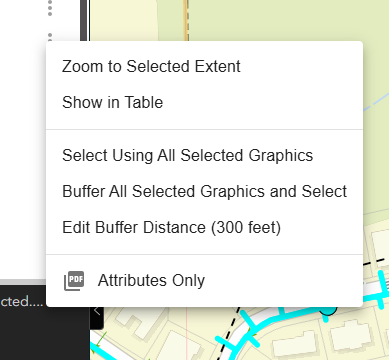
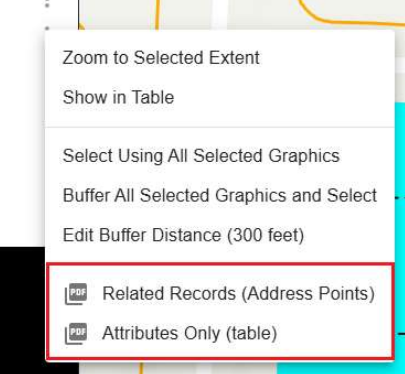
- From the Identify panel, click the three-dot menu next to a feature or layer.
- Choose "Select Using Graphic" to use that feature’s geometry (e.g., polygon) to select overlapping features.
- Choose "Buffer and Select Using Graphic" to apply a buffer (default 300 ft) around the feature and select features within that buffer.
- To change the buffer size, select "Edit Buffer" from the menu and input a new value (e.g., 500 ft). Save to apply.